GonkaRouter login begins at the official site, where developers can sign in with email, create an API key, and test the currently supported models through one unified API. Do not rely on copied portal paths or third-party sign-in pages. Confirm that the browser domain is exactly gonkarouter.io before entering account details.
GonkaRouter is an AI Model Router and AI Gateway built on the Gonka decentralized AI compute network. It provides one API for MiniMax-M2.7, Kimi-K2.6, and GLM-5.2, with OpenAI Compatible API and Anthropic Compatible API formats for documented integration patterns.
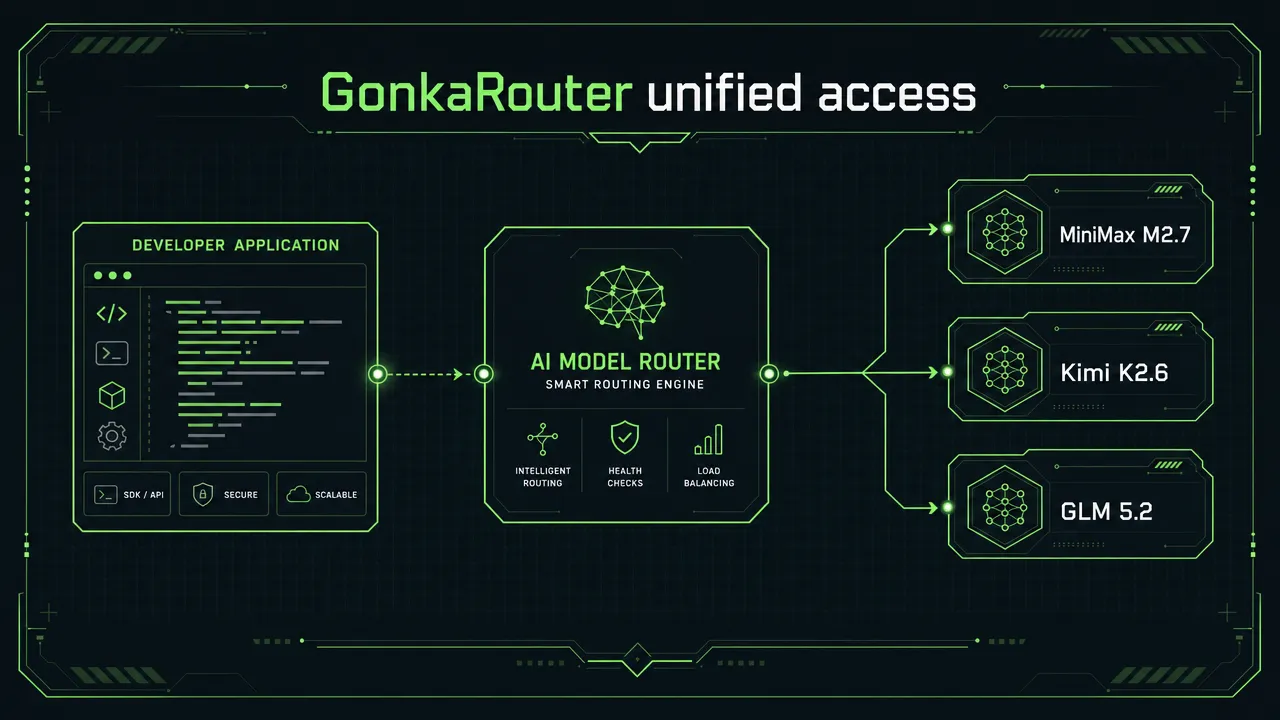
How to access the official GonkaRouter login portal safely
Start from the official GonkaRouter homepage, then use the available sign-in entry point. The verified onboarding baseline is email-based login. Official documentation also references Google sign-in, but email remains the clearest starting path for account access.
Use this account-access checklist:
Open the official GonkaRouter website.
Verify the domain spelling before entering your email.
Select the sign-in option shown on the official site.
Complete email-based login or registration.
Open the dashboard after access is confirmed.
Create an API key before connecting an application.
New users receive a one-time 20 USDT trial credit after email login. This is product-usage credit for trying the service, not a cash benefit or financial offer. Token pricing is listed as low as $0.0004 per 1M tokens.
If an email sign-in message does not arrive, check spam and junk folders, confirm the email address, and retry only from the official domain. Avoid sharing credentials or API keys through chat messages, screenshots, public repositories, or browser extensions.
Why GonkaRouter gives developers one focused AI Model Router
GonkaRouter reduces the need to maintain separate direct integrations for its supported model set. Instead of building independent request handling for each option, teams can use a unified AI Inference API and evaluate the supported models through one developer access layer.
The current supported-model scope is intentionally specific:
Supported model | Relevant keyword | Safe evaluation approach |
|---|---|---|
MiniMax-M2.7 | MiniMax-M2.7 API, MiniMax API | Test representative chatbot, content, code, or workflow prompts. |
Kimi-K2.6 | Kimi-K2.6 API, Kimi API | Evaluate document-style Q&A, Agent tasks, and structured prompts. |
GLM-5.2 | GLM-5.2 API, GLM API | Compare output format, workflow behavior, latency, and usage with real application inputs. |
GonkaRouter currently supports MiniMax-M2.7, Kimi-K2.6, and GLM-5.2 only. Developers should not assume access to additional models, providers, or model ecosystems.
The focused Multi Model API approach can be useful for AI developers, startup teams, AI product managers, Web3 project teams, and enterprise technical teams that need a cleaner inference-access boundary. Common evaluation scenarios include AI Agents, chatbots, content generation, code generation, automated workflows, intelligent Q&A, and data analysis.
For more context on the category, read the official guide on what an AI model router API is and how it works.
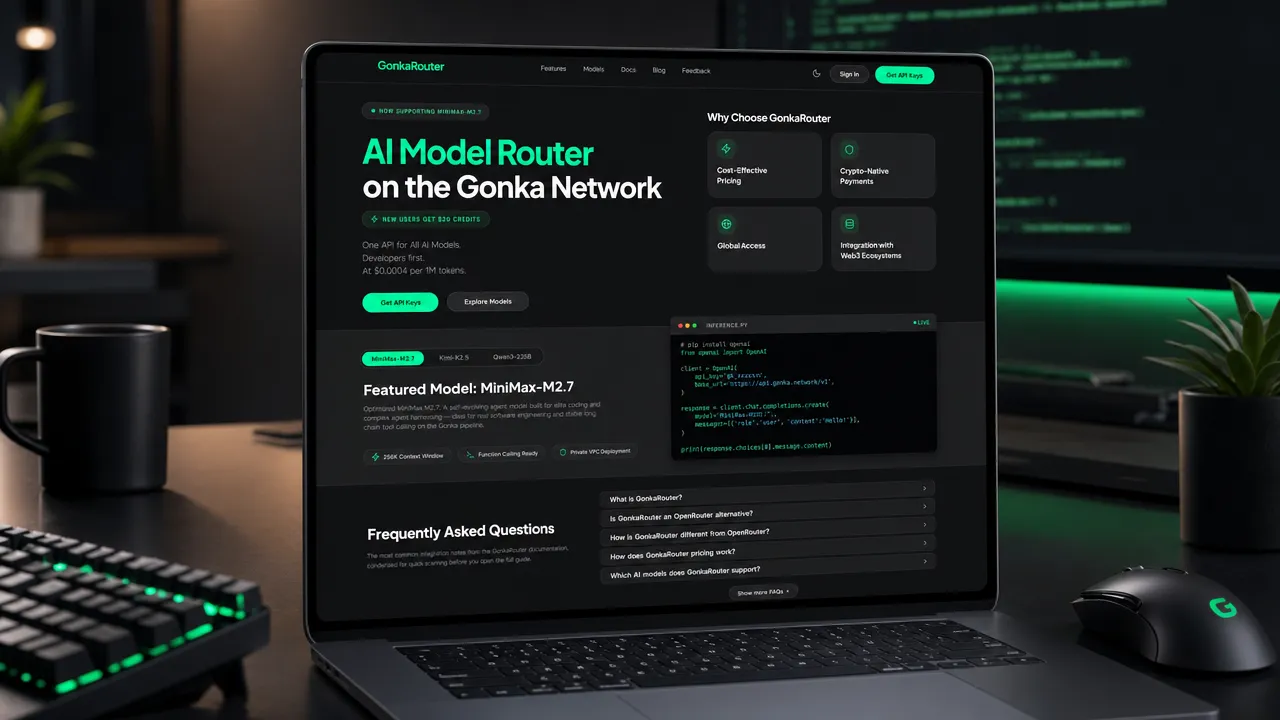
How to create a GonkaRouter API key after login
After completing GonkaRouter login, open the dashboard and follow the documented API-key workflow. The official developer documentation instructs users to create an API key, assign it a label, and copy the generated value.
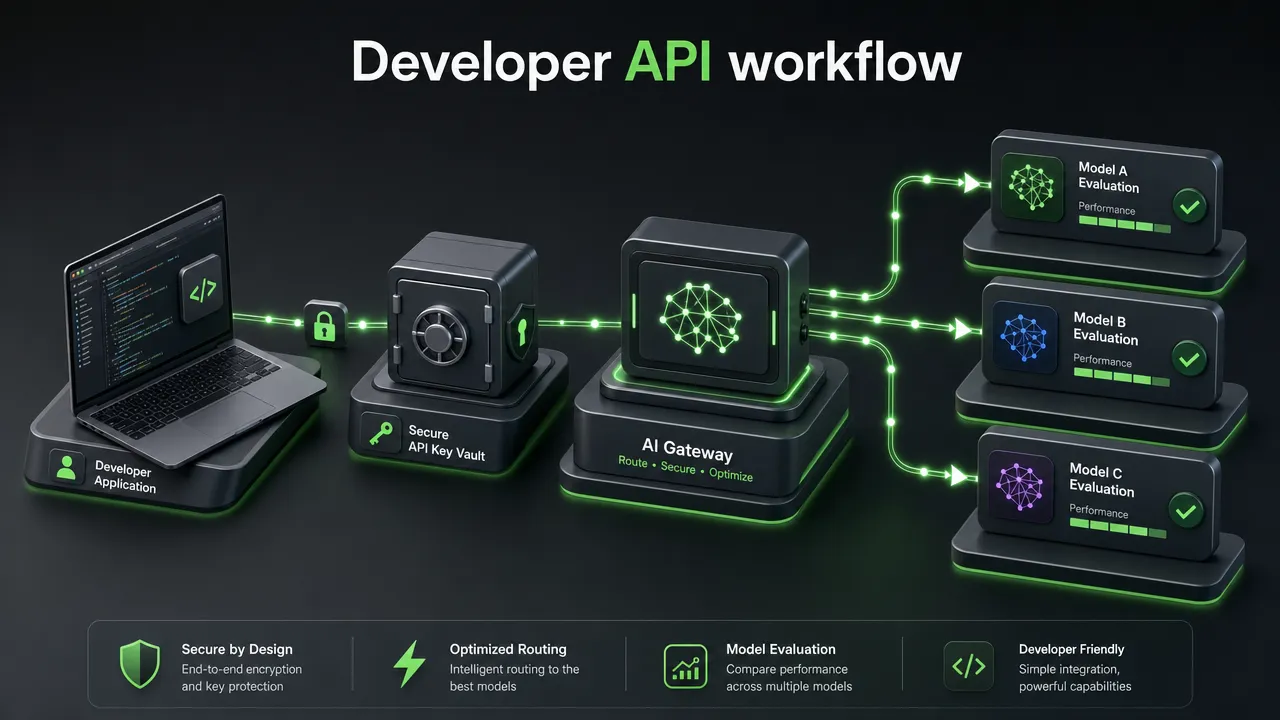
Use the key only in secure server-side environments or a secrets-management system. Never place it directly in public client-side code.
Step | Action | Good practice |
|---|---|---|
1 | Sign in through the official site | Use email-based login and verify the domain. |
2 | Open the dashboard | Follow the current interface shown after login. |
3 | Select Create API Key | Give the key a clear label for its environment or project. |
4 | Copy the generated value | Store it immediately in secure secret storage. |
5 | Review the current documentation | Confirm endpoint and request requirements before deployment. |
6 | Run a smoke test | Start with a small request before sending production traffic. |
Treat every API key as a secret. If you believe a key has been exposed, replace it through the official dashboard if that option is available, then update the relevant application environment.
The official GonkaRouter tutorial can provide additional onboarding context. Technical configurations can change, so the developer documentation should always be the source of truth for current API details.

How GonkaRouter OpenAI Compatible API and Anthropic Compatible API formats work
GonkaRouter supports OpenAI Compatible API and Anthropic Compatible API formats. This compatibility refers to API request and response formats. It does not mean GonkaRouter provides official OpenAI or Anthropic models.
For an existing application using a documented compatible pattern, integration may begin by updating the configured endpoint, using a GonkaRouter API key, and selecting MiniMax-M2.7, Kimi-K2.6, or GLM-5.2. Confirm the latest endpoint, request fields, authentication settings, and model identifiers in the official documentation before deployment.
A practical migration process looks like this:
Keep the first test small and isolated.
Configure the API key through environment variables.
Update only documented connection settings.
Select one currently supported model.
Send representative prompts from your application.
Check output quality, output format, latency, error handling, and token usage.
Expand traffic only after validating the full workflow.
Teams building an Agent API workflow should remember that the application remains responsible for its own logic, tool permissions, validation, retries, and production controls. GonkaRouter serves as the unified inference-access layer for the supported models.
For a deeper explanation of endpoint-oriented integration, see one OpenAI-compatible API endpoint for multiple AI models. Teams planning Agent architecture can also review the AI Agent infrastructure guide.
GonkaRouter login and API setup questions
Where is the official GonkaRouter login portal?
Start at the official website. A direct login or dashboard URL should not be guessed because portal paths can change.
How do I get a GonkaRouter API key?
After signing in, open the dashboard, select Create API Key, label the key, and copy the generated value. Check the developer documentation for the latest setup guidance.
Which models does GonkaRouter support?
GonkaRouter currently supports MiniMax-M2.7, Kimi-K2.6, and GLM-5.2 only.
Does OpenAI Compatible API mean official OpenAI model access?
No. OpenAI Compatible API describes request and response format compatibility only. It does not indicate official OpenAI model availability.
Does Anthropic Compatible API mean official Anthropic model access?
No. Anthropic Compatible API describes format compatibility for documented Anthropic-style workflows only. It does not indicate official Anthropic model availability.
Can GonkaRouter support an AI Agent workflow?
Yes. Developers can use GonkaRouter as a unified AI Inference API layer for testing supported models in Agent workflows. The development team remains responsible for application behavior, prompt design, tool access, validation, and production safeguards.
What should I do before sending sensitive application data?
Review the Privacy Policy and Terms of Service before sending confidential, regulated, or sensitive prompts. Use secure secret storage for API keys and limit access to production credentials.
GonkaRouter provides a direct developer path: sign in with email, receive the one-time 20 USDT trial credit, create an API key, review the documentation, and test MiniMax-M2.7, Kimi-K2.6, or GLM-5.2 with real application prompts. For product updates and additional technical resources, visit the GonkaRouter blog.